
The moment that matters most is the one most people never think about
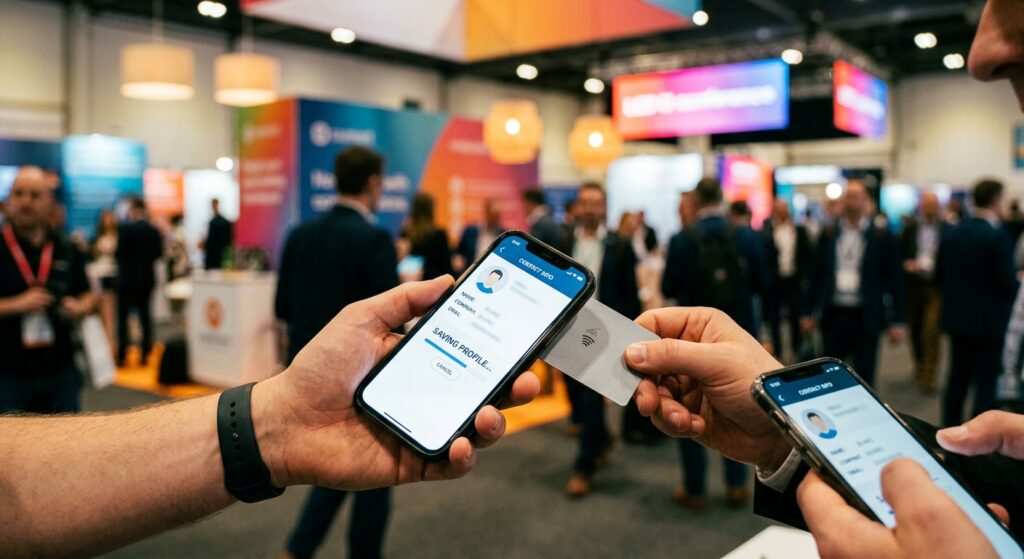
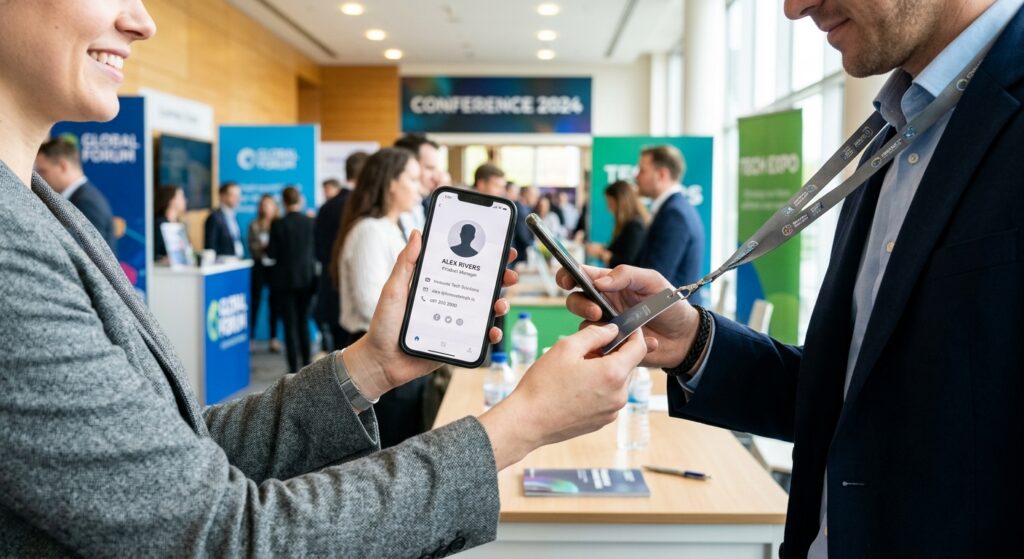
You hand someone a physical card and they pocket it. You tap your NFC card against their phone and something actually happens — right there, in their hand, in a few seconds. But what, exactly? Understanding how an NFC business card tap works is more useful than it might sound, because the handover sequence is where the value either lands or gets lost.
This post walks through the full sequence step by step: what the chip does, what the phone does, what the recipient sees, and where things can go wrong. No app required on either end — that is not a marketing line, it is how the technology works, and it matters.
Step one: the chip broadcasts a URL
An NFC card contains a small passive chip — passive meaning it draws no battery power of its own. When a phone comes within a centimetre or two, the phone’s NFC reader energises the chip through electromagnetic induction. The chip responds by broadcasting its stored data.
In the case of a digital business card, that stored data is a URL. Nothing more complicated than that. The chip does not run software, does not authenticate anything, and does not communicate with a server. It simply hands a web address to whatever device is reading it.
The whole exchange is effectively instantaneous — the chip has no processing to do beyond handing over the address it stores.
Step two: the phone intercepts and acts
Modern smartphones — both iOS and Android — handle NFC reads at the operating system level. When the OS receives a URL from an NFC chip, it opens that URL in the device’s default browser. No app prompt, no permission dialogue beyond what the OS itself manages, no requirement for the recipient to have any particular software installed.
This is the part that surprises people who have not used a digital card before. The recipient does not need to download anything. They do not need a BONKT account. They do not need to have heard of BONKT at all. Their phone reads the chip, passes the URL to their browser, and the browser does what browsers do.
If you want to understand the broader picture of how digital cards sit alongside QR codes and links as sharing methods, the BONKT guide to how digital business cards work covers the comparison well.
Step three: the profile loads in the browser
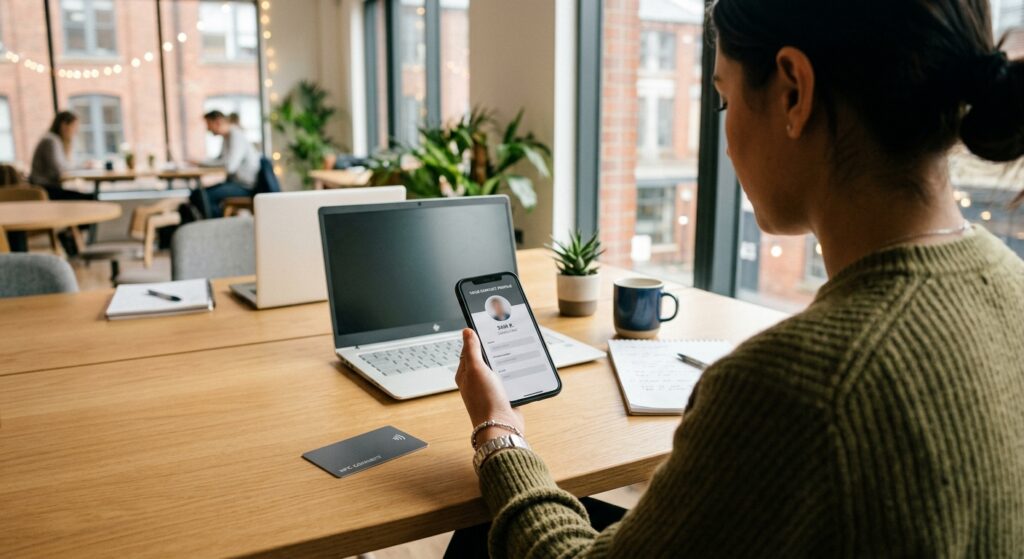
The URL the chip broadcasts points to a hosted contact profile — a mobile-optimised web page containing your name, role, company, phone number, email, social links and any other details you have added. On a reliable mobile connection, this page loads about as quickly as any other web page.
The recipient sees a clean, readable profile. They can tap a phone number to call, tap an email address to compose, or tap through to any linked page. Everything works the way links work on any website, because that is all it is.
You control what appears on that profile, and you can update it at any time without touching the card. The chip always points to the same URL; the content at that URL is what changes. That is why a digital card does not need reprinting when a phone number or title changes — a point worth understanding if you have ever thrown away a box of cards after a promotion. The post on editing your card without reprinting goes into more detail on that workflow.
Step four: saving the contact
At the bottom of the profile — or via a prominent button depending on how the card is set up — the recipient sees an option to save the details to their phone’s contacts. Tapping it triggers a standard vCard download, which the phone’s contacts app handles natively.
Again: no app, no account, no friction. The contact saves the same way any vCard saves, because that is the file format being used. The recipient ends up with your details in their contacts app alongside everyone else they know.
This is the step that makes the tap worth doing. A profile that loads but never gets saved is just a web page. The Save to Contacts action is what converts the interaction into something durable. If you are customising your profile to make that button prominent and your key details scannable at a glance, the profile customisation guide in the knowledge base is the right starting point.
What can break the flow
The sequence above works well when conditions are right. There are four places it can fail, and knowing them in advance means you can avoid them.
NFC placement on the card
The chip inside an NFC card is not always centred. On some card formats — particularly metal cards — the chip sits closer to one edge. If the recipient holds their phone against the wrong part of the card, the read fails. Most modern phones have their NFC antenna near the top of the device on the back panel, so a tap near the top of the card tends to be the most reliable position. If you are handing someone a card and they look confused after a failed tap, tell them to try the top edge.
Phone cases and interference
Thick wallet cases, cases with magnetic closures, and some metal-backed cases can attenuate the NFC signal enough to prevent a read. This is a phone hardware issue, not a card issue. The practical workaround is to have a QR code as a backup — it covers the same handover without any hardware dependency. The QR code knowledge base article explains how the two sharing methods complement each other.
Browser pop-up blockers
Some browsers, particularly on Android with aggressive ad-blocking extensions installed, may intercept the URL redirect and show a confirmation prompt instead of opening the page directly. This is uncommon, but it does happen. If the recipient sees a “blocked pop-up” notification rather than the profile loading, they can tap the notification to open it manually. It is a one-extra-tap problem, not a failure.
Low or no signal
The chip-to-phone exchange happens entirely offline — no signal required for that part. But loading the profile page requires a data connection. In a basement venue, a rural site office, or a conference centre with overloaded Wi-Fi, the page may load slowly or time out. The tap still works; the browser just cannot retrieve the page until signal returns. Some phones will cache the URL and retry automatically once connectivity is restored.
Why the sequence matters more than the card itself
The physical card — whether it is plastic, bamboo, metal or one of the boutique formats — is just a delivery mechanism for the chip. The chip is just a delivery mechanism for the URL. The URL is just a pointer to the profile. The profile is what actually contains your information.
That layered structure is what makes a digital card meaningfully different from a printed one. You can update the profile without touching the card. You can connect the contact data to a CRM through the available integrations. The card in someone’s hand stays the same; everything behind it can change.
Understanding how an NFC business card tap works — really works, at each step — helps you set up your profile to make the most of the handover. A well-structured profile with a clear Save to Contacts prompt, relevant links and current information turns a brief tap into a contact that actually sticks.
If you are moving from printed cards to digital for the first time, the transition guide covers the practical steps. For managing your card from your phone once it is set up, the iOS and Android app guide is worth a read. And if you have questions the knowledge base does not answer, the full knowledge base is the place to start.
Setting up a BONKT profile takes under two minutes. You can start on the free tier with no credit card required, and the recipient — whoever they are, wherever you meet them — will never need to install a thing. Create your account here.
No comment yet, add your voice below!